📹Zoom Integration Guide
Ready to Get Started?
Access your instructor dashboard to begin setting up Zoom integration and start creating amazing live sessions for your students.
Go to Instructor Dashboard→Access Your Instructor Dashboard
Start by logging into your instructor account to access the platform features.
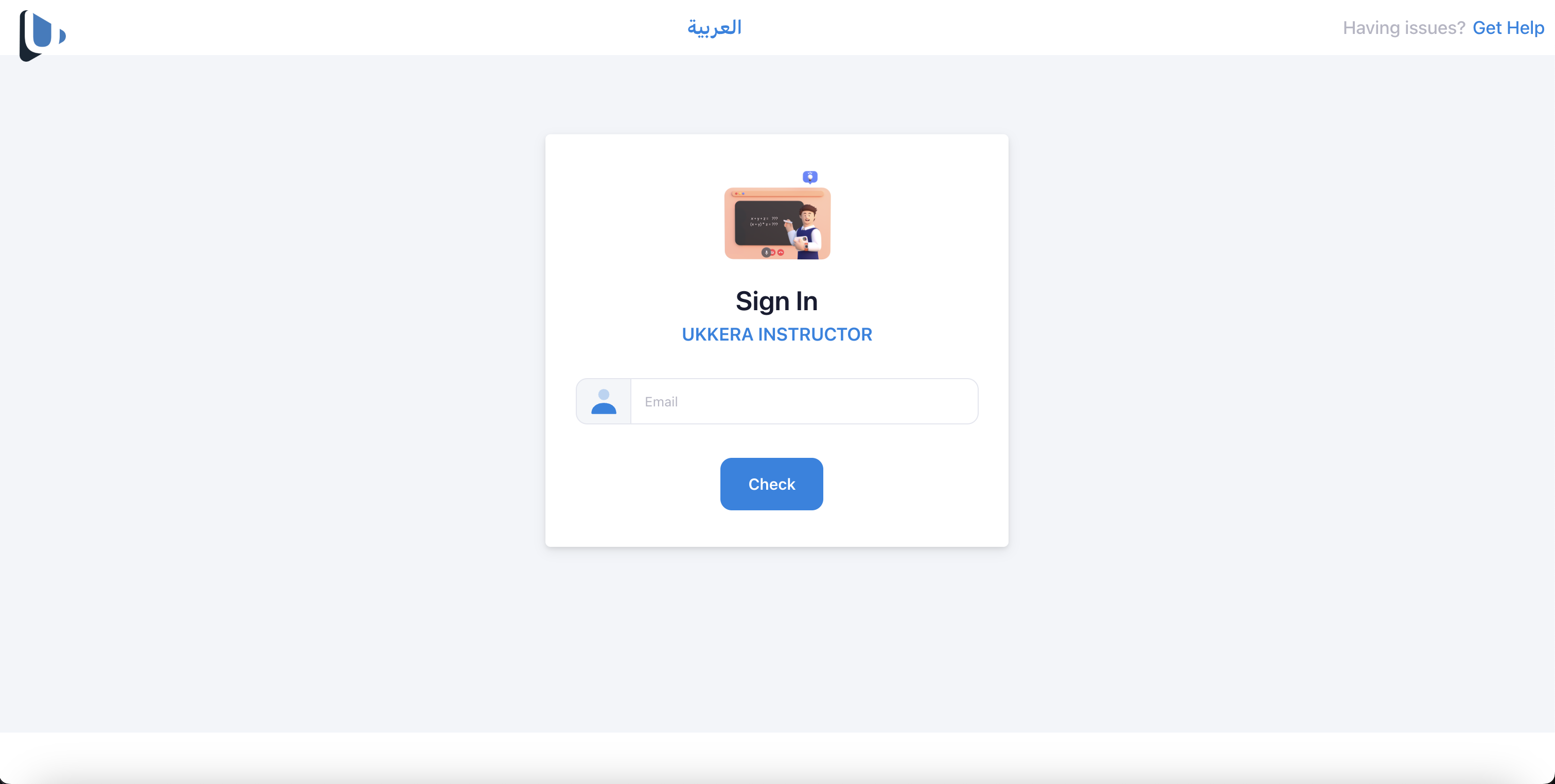
Use your instructor credentials to log into the Ukkera platform. Make sure you have instructor privileges to access the live session features.
- Keep your login credentials secure and never share them
- Contact support if you forgot your password
- Ensure you have instructor permissions for live sessions
Navigate to Live Sessions
From your dashboard, click on the 'Lives' card to access live session management.
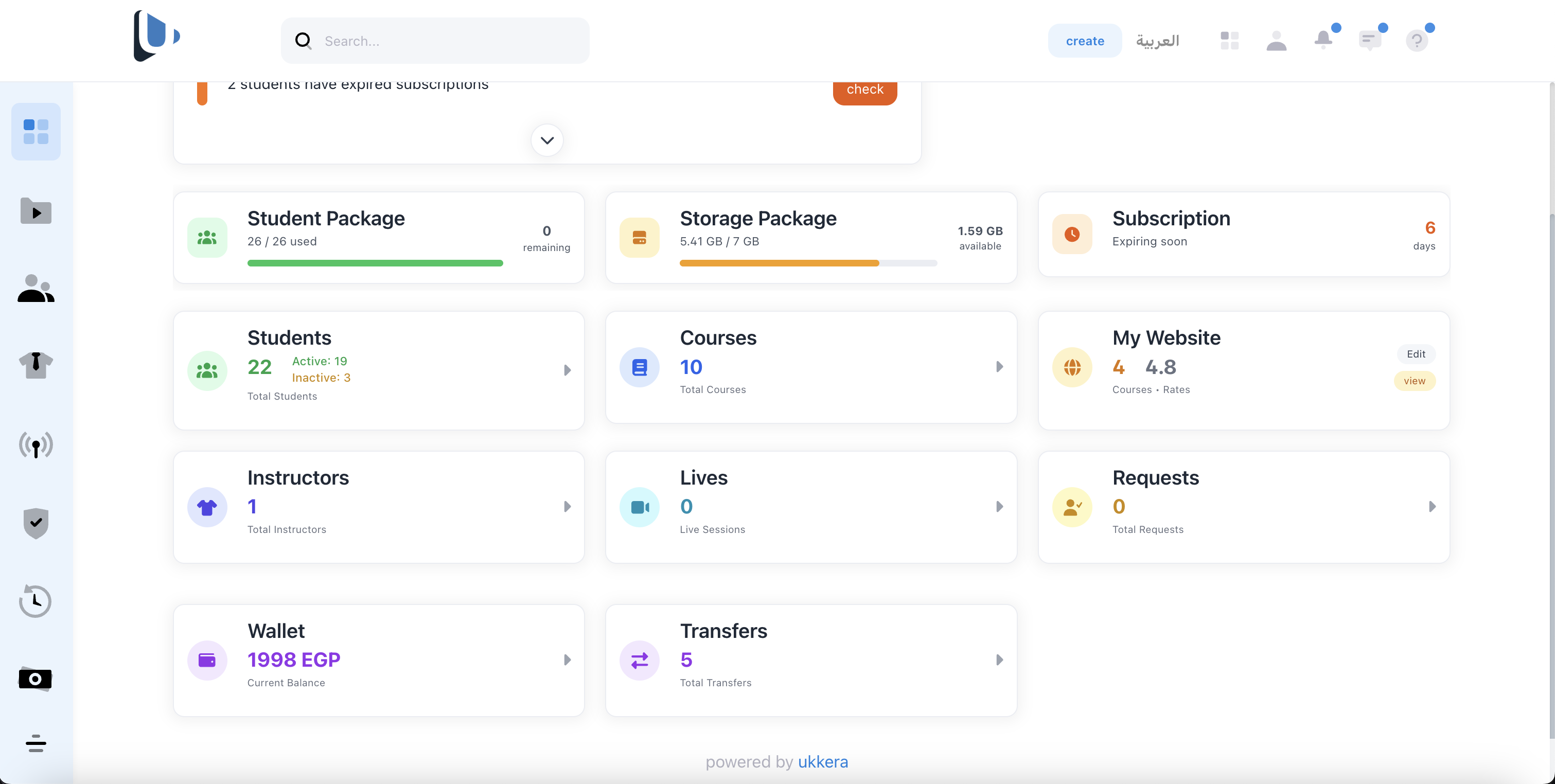
The Lives card is your gateway to managing all live sessions. This is where you can create, schedule, and manage your Zoom meetings integrated with the platform.
- The Lives card shows your upcoming sessions count
- You can also access this from the main navigation menu
- Bookmark this page for quick access
Connect Your Zoom Account
Securely link your Zoom account to enable meeting creation and management.
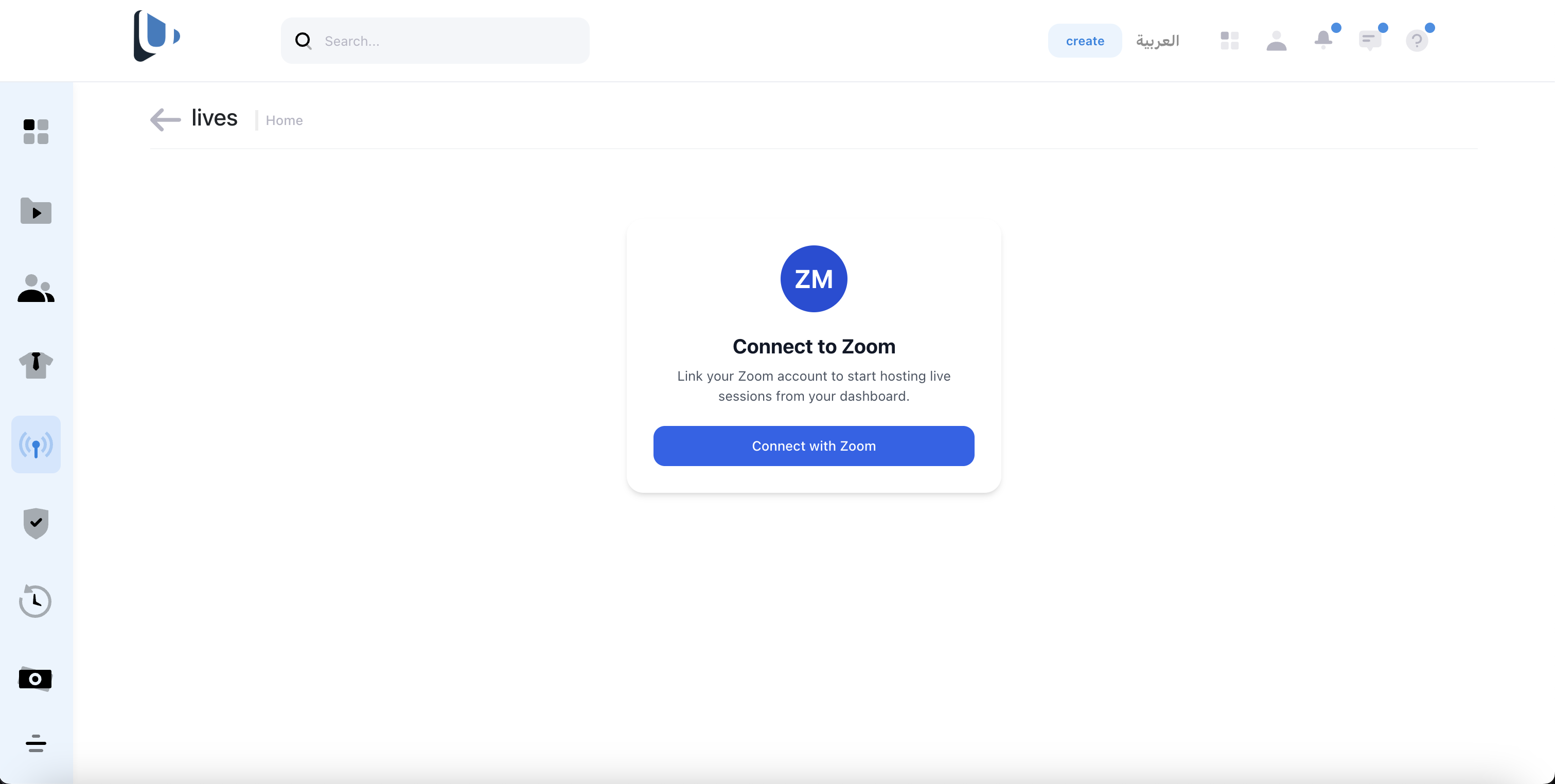
Click the 'Connect with Zoom' button to authorize Ukkera to create and manage meetings on your behalf. This process is secure and follows OAuth 2.0 standards.
- You need a valid Zoom account (Basic, Pro, or Business)
- The authorization is secure and can be revoked anytime
- Your Zoom credentials are never stored on our servers
- Make sure you are logged into Zoom in your browser
- Check if your Zoom account has API access enabled
- Try clearing browser cache if connection fails
To provide this functionality, our application requests the following Zoom OAuth scopes:
- Meetings: Create, update, view, and delete meetings; manage meeting templates, participants, registrants, and meeting status; access meeting summaries and past meeting information.
- Users: View basic user information and tokens; update user profiles, features, and settings where required to link an instructor’s Zoom account to the platform.
We use these permissions solely to support educational features such as scheduling and managing classes. Other meeting or user data is accessed only in real time when required and is never stored.
Manage Account Connection
You have full control over your Zoom integration and can disconnect at any time.

Once connected, you can see your account status and disconnect your Zoom account if needed. Disconnecting will not affect existing meetings but will prevent creating new ones.
- Existing meetings will continue to work after disconnection
- You can reconnect anytime without losing data
- Disconnection is immediate and secure
Create Live Meeting
Fill out the meeting form to schedule your live session with students.
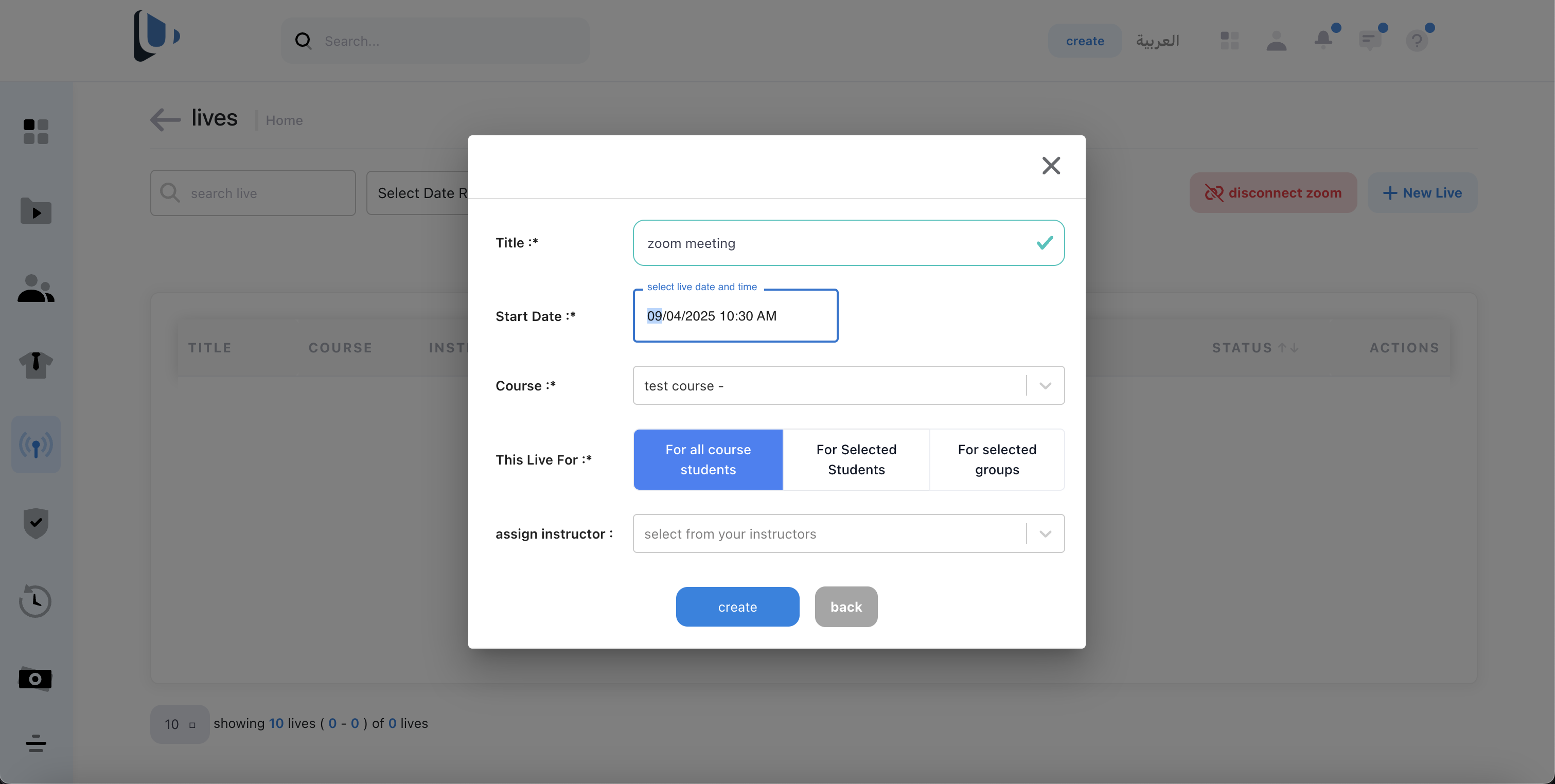
Use the comprehensive form to set up your meeting with title, description, date, time, and other settings. The meeting will be automatically created in your Zoom account and linked to your course.
- Choose descriptive titles for better organization
- Set appropriate meeting durations
- Enable waiting room for better security
- Add meeting descriptions for student clarity
Delete Zoom Meeting
Remove meetings that are not started yet or access ended meetings from the ended lives tab.
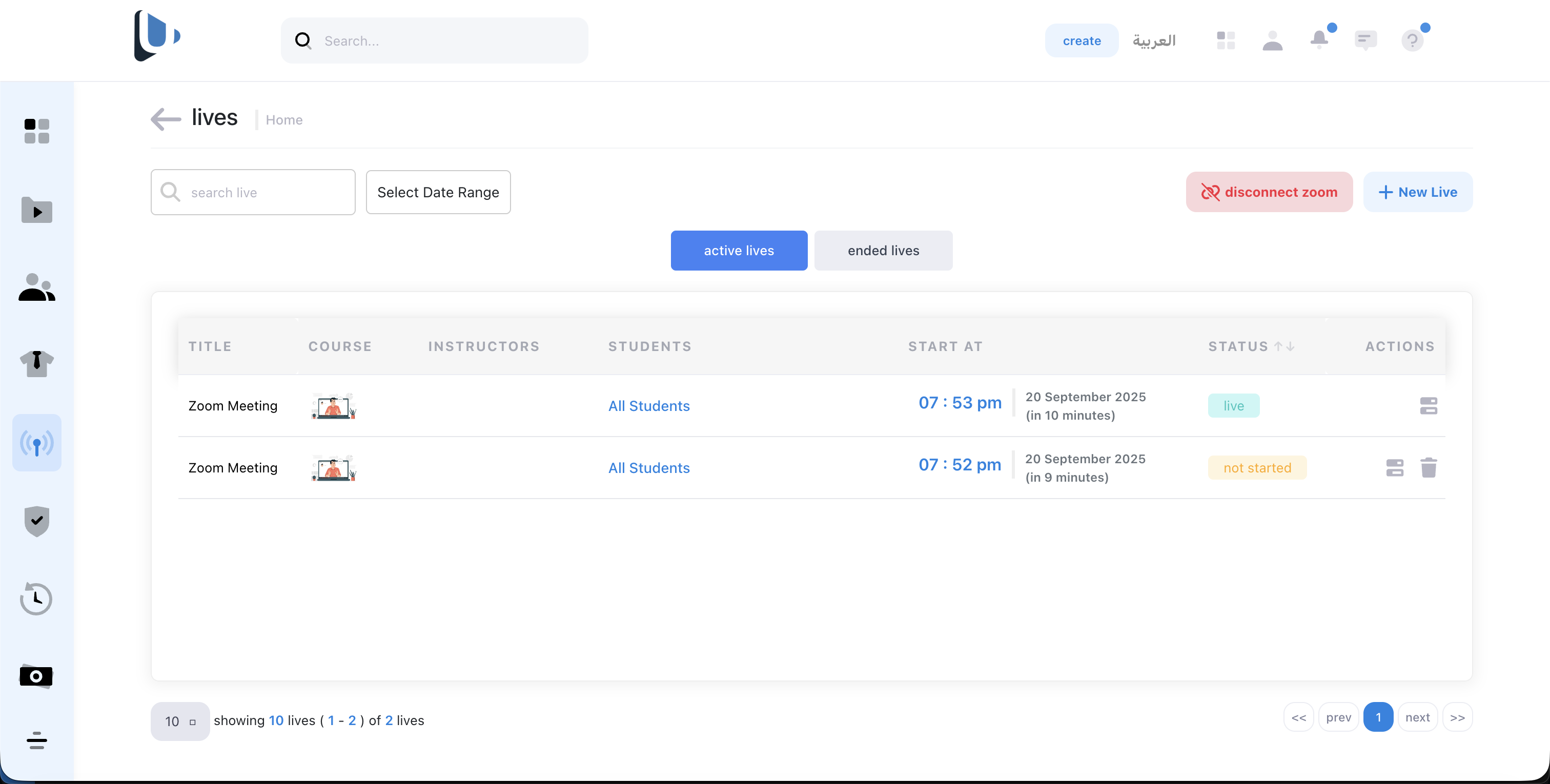
You can delete Zoom meetings using the trash icon in the actions column. For meetings that haven't started yet, you can delete them directly from the main view. For ended meetings, navigate to the 'Ended Lives' tab to manage completed sessions.
- Only meetings that haven't started can be deleted from the main view
- Ended meetings can be found in the 'Ended Lives' tab
- Deleting a meeting will remove it from both Ukkera and your Zoom account
- Make sure to notify students if you need to cancel a scheduled meeting
Join Your Meeting
Access your live session directly from the platform or through the Zoom application.
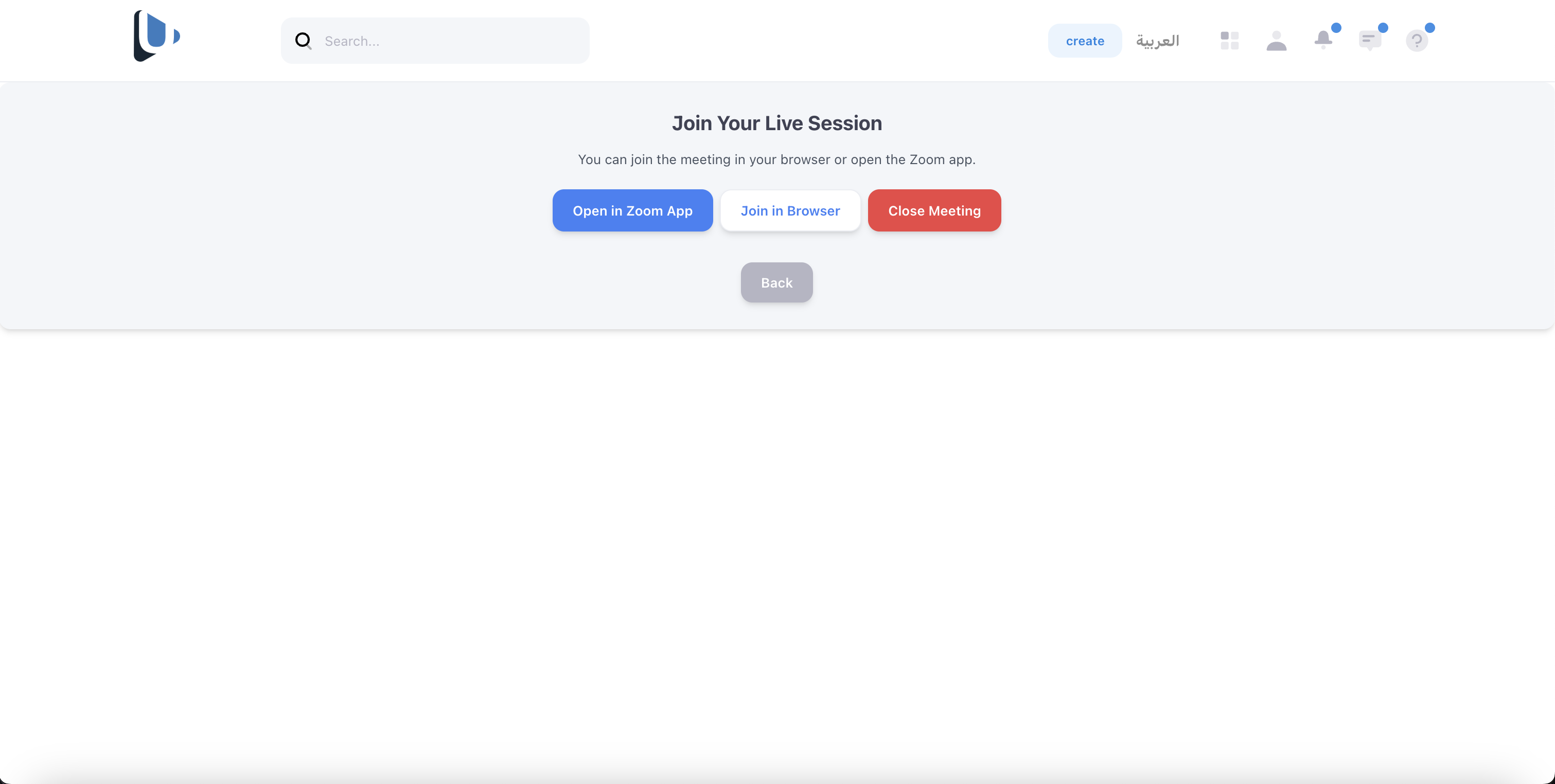
When it's time for your meeting, you can join directly through the web browser or launch the Zoom desktop/mobile app. Students will also see the same options to join your session.
- Test your audio and video before the session
- Join 5-10 minutes early to prepare
- Desktop app usually provides better performance
- Ensure stable internet connection for best experience
End Active Meeting
Properly end your live session when completed using the end meeting option for active lives.
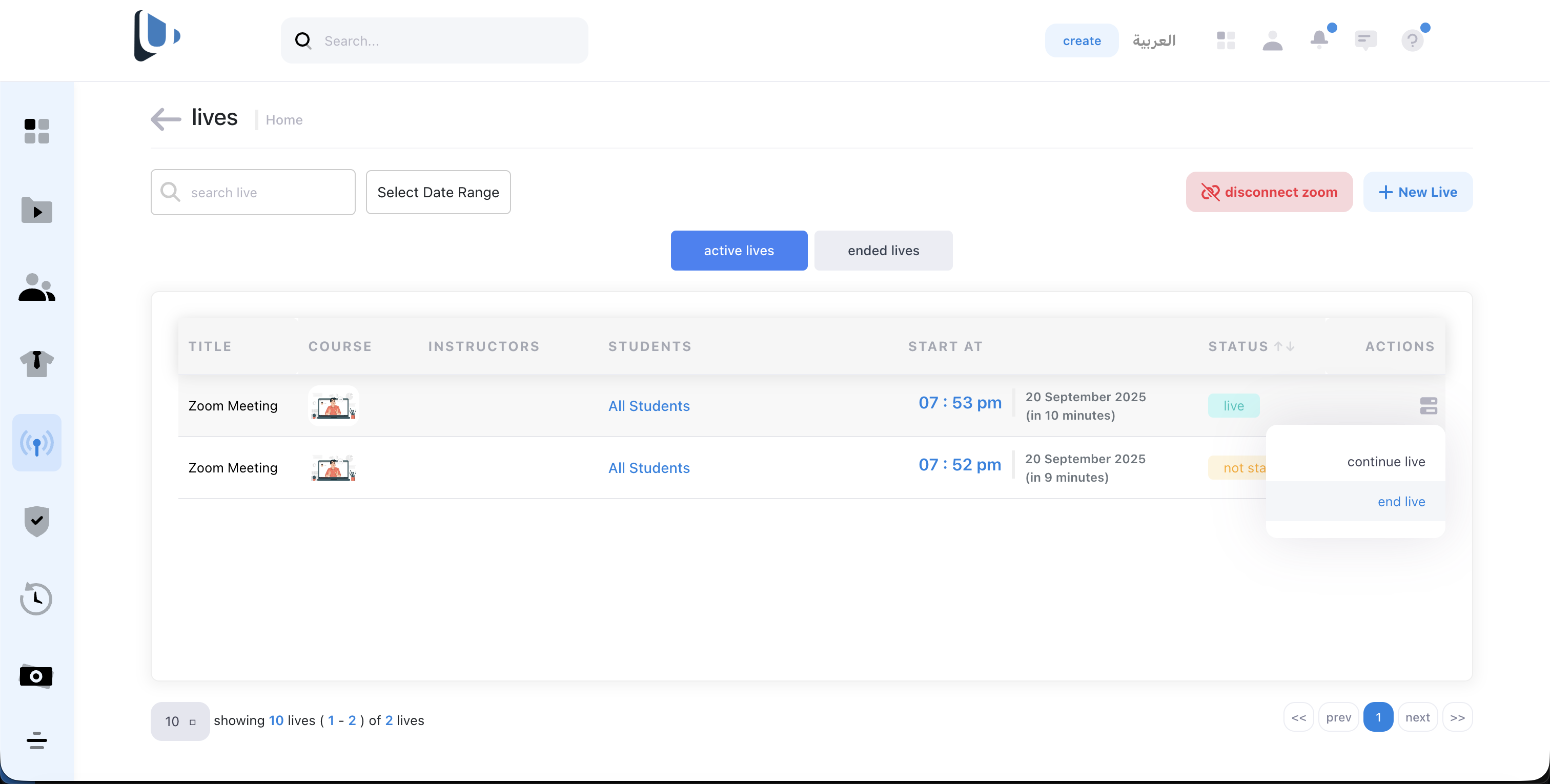
When your live session is finished, you can end the meeting from the active lives interface. This will properly close the session for all participants and move it to the ended lives section for future reference.
- Always announce the session end to participants before closing
- Make sure all important content has been covered
- Ended meetings will appear in the 'Ended Lives' tab
- Session recordings (if enabled) will be available after ending
View Meeting Participants
Review ended meetings and check participant attendance and join details.
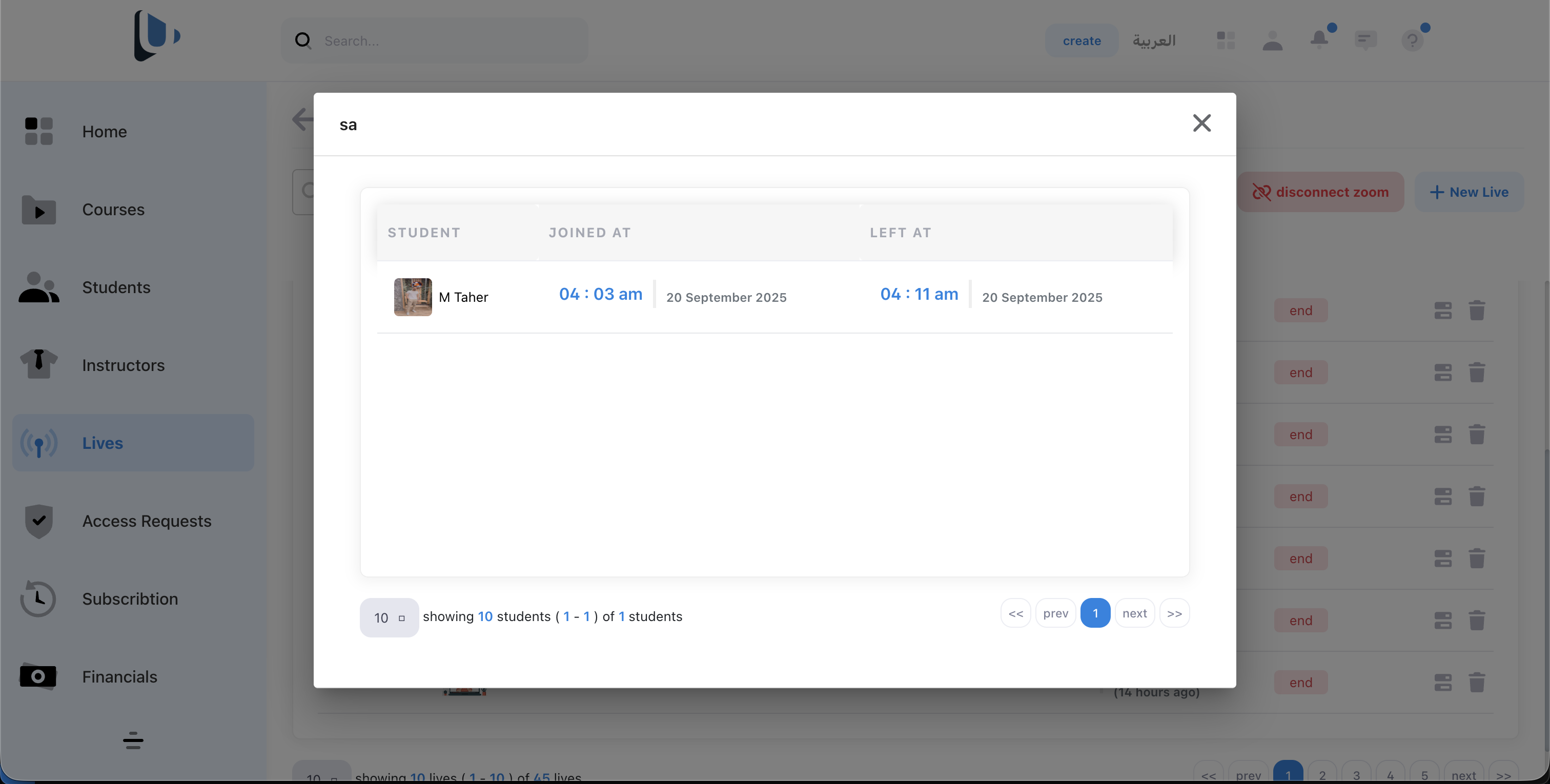
After your meeting ends, you can view detailed information about participants who joined the session. This includes attendance records, join times, and participation duration to help you track student engagement and attendance.
- Access ended meetings from the 'Ended Lives' tab
- Review participant join times and duration for attendance tracking
- Use this data to monitor student engagement and participation
- Participant data helps in evaluating session effectiveness
Disconnect Zoom App
Completely disconnect your Zoom integration and remove all associated data from our platform.
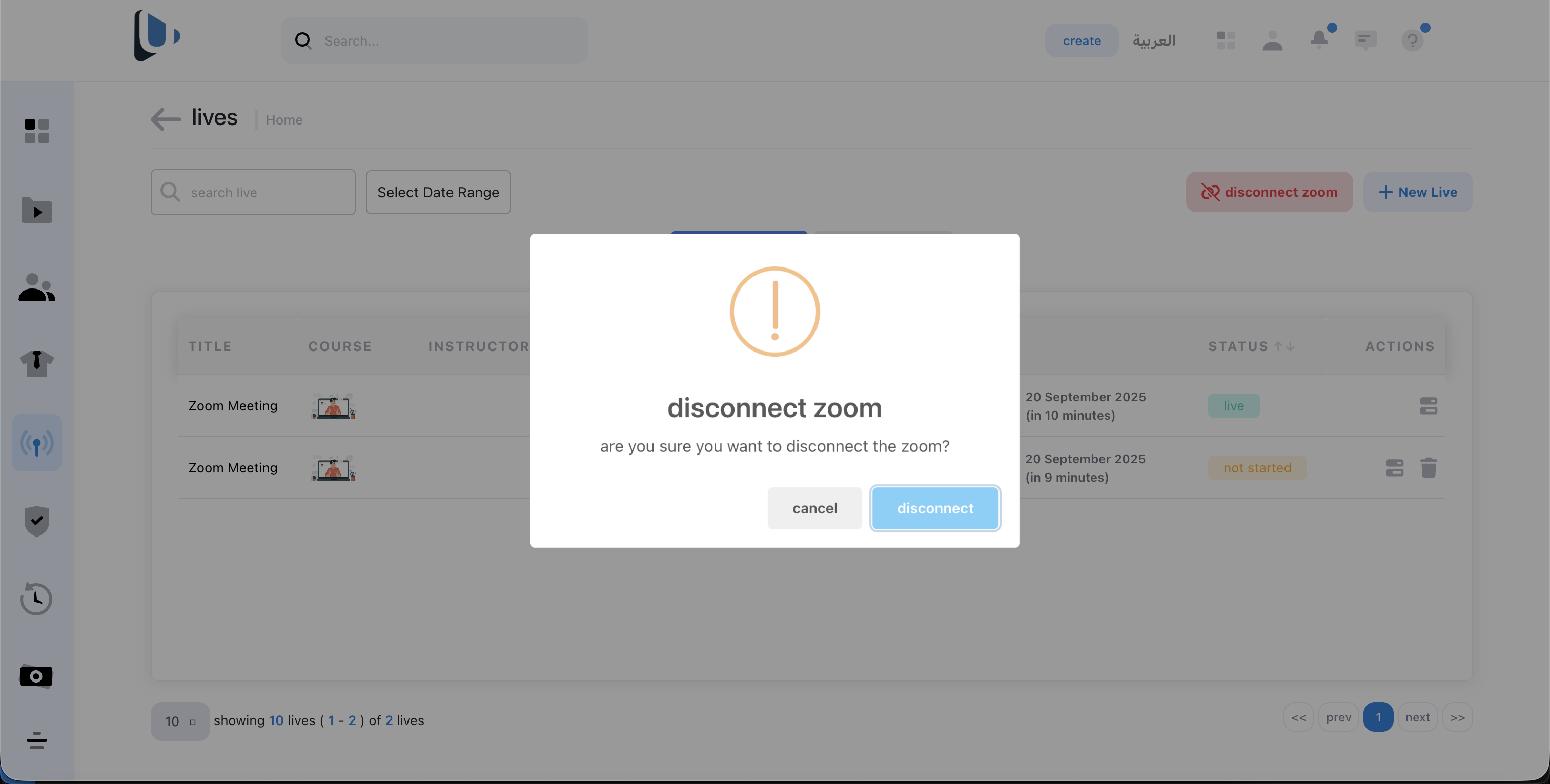
When you disconnect the Zoom app, all data related to your Zoom integration will be deleted and your authentication tokens will be permanently removed from our servers. This ensures complete privacy and security of your Zoom account information.
- All your Zoom tokens will be permanently deleted from our servers
- Existing meetings may still be accessible through your Zoom account
- You can reconnect anytime by going through the connection process again
- This action ensures complete data privacy and security